Browser
Scan Requirements
Uploaded scans should adhere to the following requirements as supported by the Thirona LungQ algorithm.
Ensure all files are in standard .DICOM format.
Both enhanced and slice-based DICOM are supported.
Only thoracic (or thorax/abdomen) CT scans are supported.
The complete lungs must be present on the CT scan. If parts of the lung are missing, the output parameters will be compromised.
Only SUPINE position chest CT scans with arms positioned above the head are supported. Scans obtained in PRONE position can NOT be analyzed.
The orientation of the patient should be aligned to the axial plane.
Only axial reconstructions are supported. Sagittal or coronal reconstructions are not supported.
The CT scans should be reconstructed with a slice thickness smaller than or equal to 1.5mm.
The CT scans should be reconstructed with a slice spacing smaller than or equal to the slice thickness and should be consistent throughout the scan.
CT scans with duplicated slices, missing slices, or corrupted slices are not supported.
CT scans should consist of 150 slices or more.
Only TLC (inspiration) scans are accepted for Compass analysis.
Each patient should have a unique Patient ID (DICOM tag (0010,0020)). Every scan belonging to the same patient (e.g. inspiration and expiration, baseline and follow-up) should be identifiable by the same PatientID tag.
Each CT scan belonging to the same study, i.e. the same timepoint of the same patient (e.g. different kernels, inspiration and expiration scan at the same timepoint), should have the same unique StudyInstanceUID (DICOM tag (0020,000D)).
Each scan should have a unique SeriesInstanceUID (DICOM tag (0020,000E).
Scan Recommendations
Scans are recommended to adhere to the following requirements for consistent results
The CT scans should be reconstructed with a slice thickness between 1.0mm and 0.5 mm.
Kernel reconstruction performed should be equivalent to Softer kernels (e.g., GE STANDARD, Siemens b31).
The FOV of the CT scans should not be too wide.
The CT scans should be of good quality (scans should not contain e.g. movement artifacts, streak artifacts from implants, high noise levels due to dose level).
The CT scans should be acquired from CT scanners with at least 16 detector rows.
Uploading DICOMs
You can upload new DICOMs by clicking the + sign located at the top right. You will be greeted by a new page. Here, you can upload files directly. They will be renamed and anonymised. This anonymisation happens client-side (i.e. on your own computer, before the data is uploaded to the platform) and basically consists of stripping all patient information not necessary for the algorithms. You must write down the new Patient ID, which allows you to trace back the scan. Thirona cannot link the new Patient ID to the old patient data, so it is imperative that the client keeps track of this connection.
You can select files by dragging and dropping them on the grey box, or click said box and navigate to your desired files via the file menu.
Currently, we only support enhanced DICOMs, and slice-based DICOMs. Multiple series of a study can be uploaded.
Make sure that all images belonging to the same study are in one upload request.
Do note that after anonymisation the old values are lost! So do not use our system as storage.
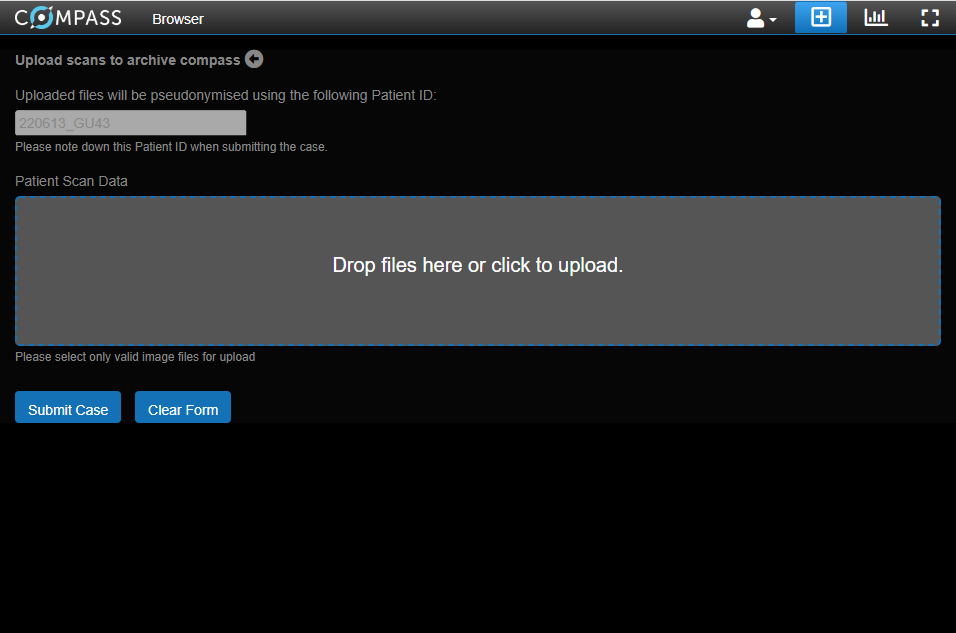
Fig. 1 On this page you can upload a DICOM.
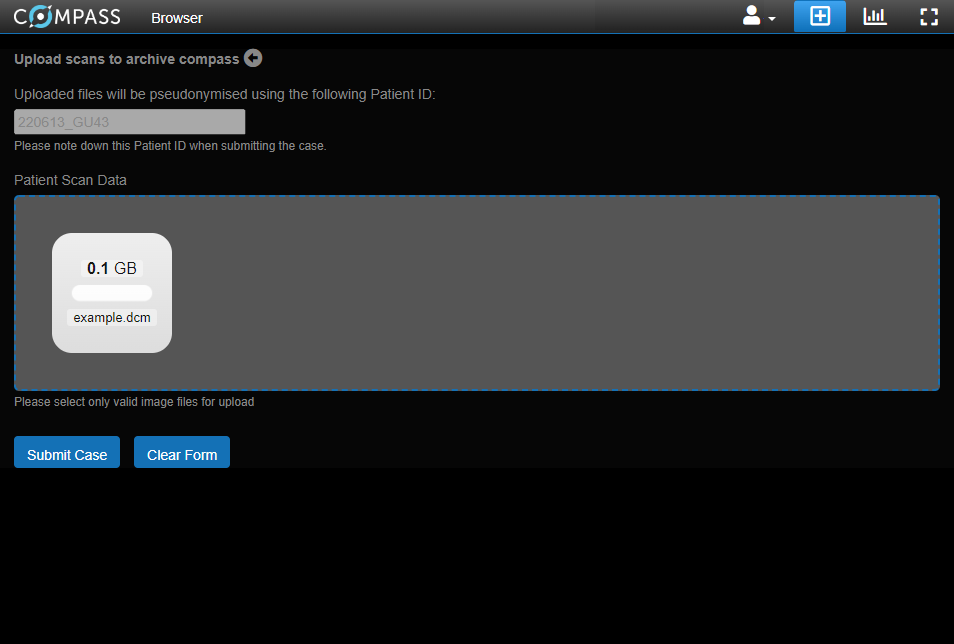
Fig. 2 The inserted DICOMs will appear in the grey area.
Once ready to upload, click the Submit case button to start the upload. If you are uploading large files, or many slice-based dicoms, this process may take a while.
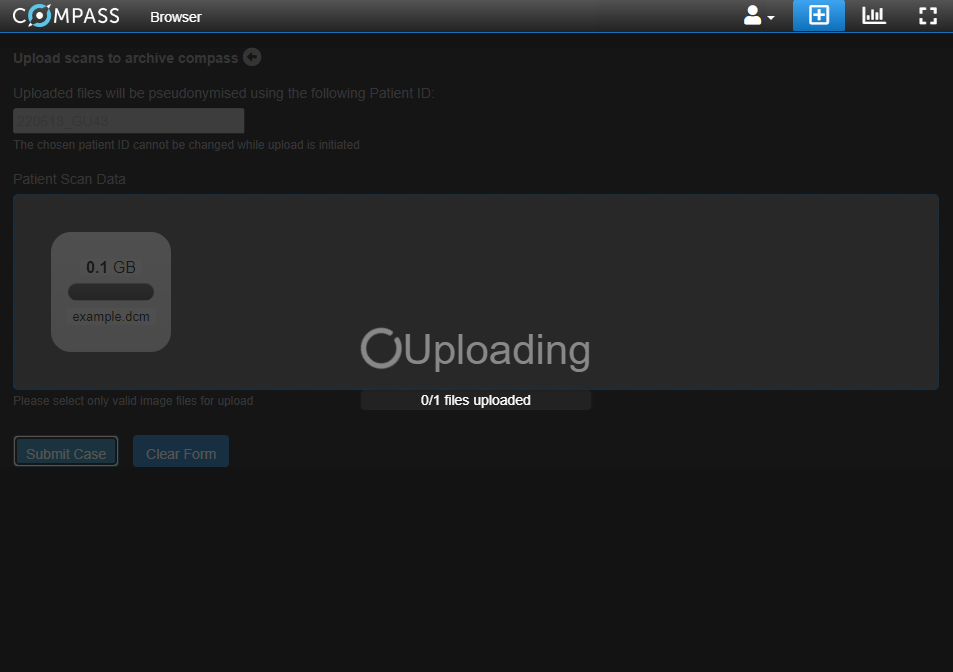
Fig. 3 The web portal is processing and uploading your DICOMs, this might take a while.
If all goes well, you will see a success message. If not, it will inform you what went wrong.
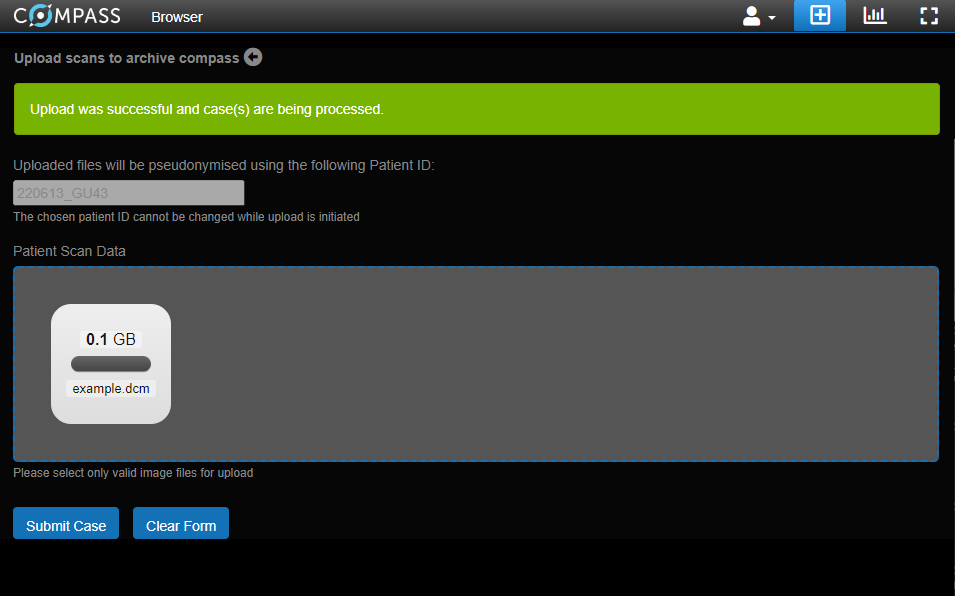
Fig. 4 Your scan has been successfully uploaded. Please save the PatientID generated for you before you leave this page. You can return to the “Browser” tab.
Viewing Reports
Once analysis is done and the report is created, you will be able to view it in the web portal. If the report is ready, the “Report generated” column will have a “Yes” behind the series that was picked for analysis. To select the series, you can click it. Then you can view the report for this series by clicking the “View series” button. If the arrow on the button is pressed, the download options will appear. To return to the overview, you can click the “Browser” tab again.
Contact Information
This software has been developed by Thirona. If you have any questions regarding the analysis software, please send an email to info@thirona.eu.